The VertexCache Baker panel
Window ▸ Tools ▸ Ternary Labs ▸ VertexCache Baker (VAT)
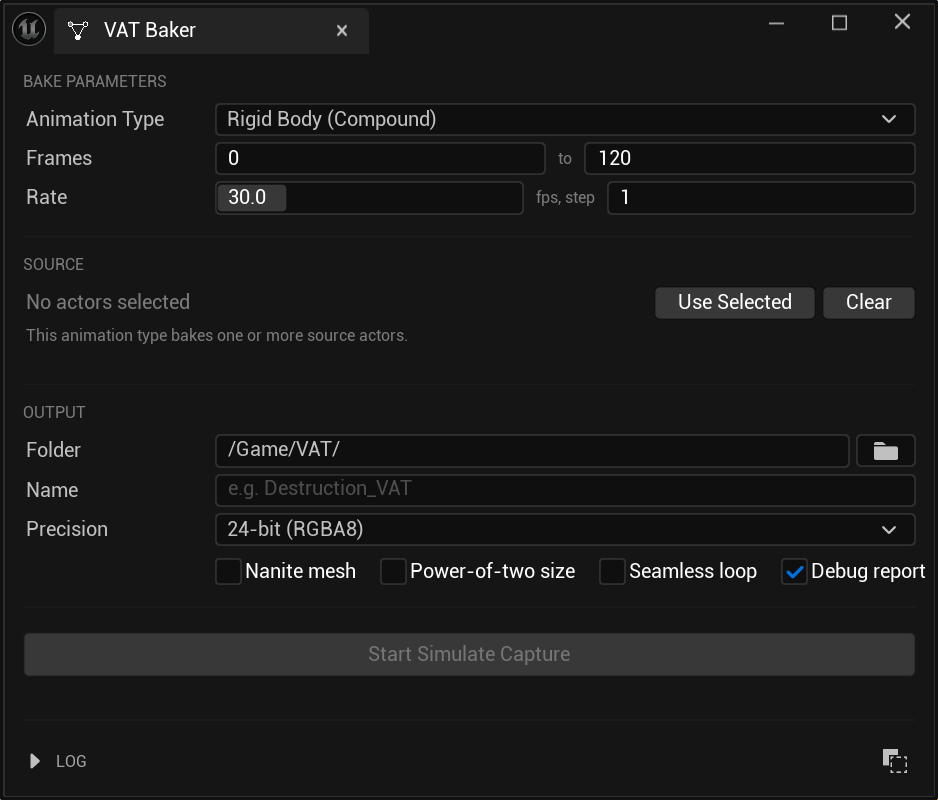
You can also right-click any baked VAT data asset in the Content Browser and choose Re-bake in VertexCache Baker — the panel opens with every setting restored from that bake.
Bake parameters
Animation Type
Which kind of source you're baking. See Bake types. Changing it reshapes the panel: the Soft Body (Anim Sequence) entry swaps the actor controls for asset pickers, and some types offer fewer texture precisions.
Driven By
What advances the capture:
| Simulated Actors | The simulation runs on its own and the bake records it. The default. |
| Level Sequencer | A Level Sequence is played alongside the simulation, so the bake matches the shot. Adds the Drive Sequence picker below. |
You choose the actors to bake either way — the mode only decides what makes them move.
Source
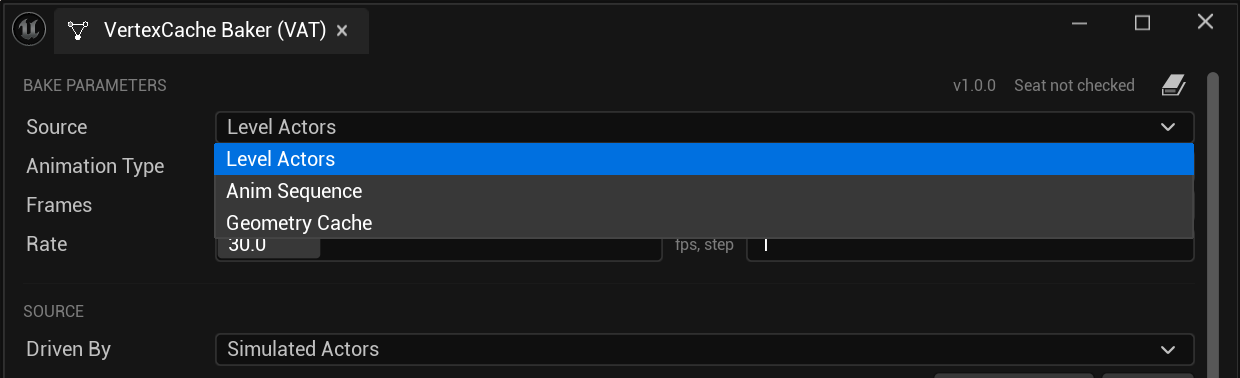
Where the frames come from. Animation Type narrows to what the chosen source can produce.
| Level Actors | Captured from a running simulation. Rigid Body, Soft Body and Particle. |
| Anim Sequence | Sampled from a Skeletal Mesh and an Anim Sequence. No play session. |
| Geometry Cache | Sampled from an imported Alembic cache. Fluid, Particle, Soft Body when the topology never changes, or Rigid Body when the cache keeps one track per object. No play session, and no actor needed in the level. |
Only Level Actors runs a play session; the asset-backed sources sample directly and start nothing.
For Level Actors — select your actors in the level and click Use Selected. Clear empties the list. Rigid Body accepts several actors; every other type takes exactly one, and the panel trims the selection with a note in the log if you select more.
In Level Sequencer mode only actors the sequence animates are accepted; the rest are dropped, named in the log.
If everything is dropped, either the actors are wrong, or the sequence spawns its actors rather than possessing ones in the level — a spawnable has none to select, so bake it in Simulated Actors mode.
For Anim Sequence — two asset pickers instead: Skeletal Mesh and Anim Sequence. No level actor is involved.
For Geometry Cache — a single Geometry Cache picker, which fills the frame range in from the cache's length. The cache is sampled straight from the asset, one sample per baked frame.
Which type a cache should become — and when it will refuse — is covered in Bake types.
Check the Alembic import settings first
Geometry Cache bakes need Store Imported Vertex Numbers on, and Rigid Body needs Flatten Tracks off. Both are set at import — see Importing an Alembic cache.
Drive Sequence
Shown in Level Sequencer mode. Pick the Level Sequence asset to play while capturing, so the baked animation matches the shot rather than merely starting at the same time.
The sequence does not need an actor in the level. The bake creates its own player inside the play session, which is also why its bindings resolve to the actors actually being simulated.
Assigning one fills the frame range in from the sequence length, and the bake ends when the sequence does — shorten the range to bake only part of it, and if the sequence ends first the bake keeps what it captured and says so in the log.
Watch for a sequence actor with Auto Play
If the same sequence is also placed in the level as a Level Sequence Actor with Auto Play enabled, it starts as soon as the session does — before the capture — and two players end up driving the same actors. The panel warns in the log when it finds one.
Start Frame / End Frame
The inclusive frame range to bake.
For Soft Body (Anim Sequence), this is a true range — Start Frame seeks into the sequence, and picking a sequence fills both fields in from its length.
For the simulated types, capture begins when the play session starts, so Start Frame sets how many frames are recorded rather than skipping into the simulation.
Capture FPS
Frames captured per second of simulation time. During a simulated bake the engine is driven at exactly this rate so the capture is even regardless of editor performance.
Frame Step
Bake every Nth frame (1 = all frames). Higher = fewer baked frames / smaller textures; the material interpolates between them.
The simulation still advances at Capture FPS; only every Nth frame is stored. Playback duration is unchanged.
Keep source pose
Soft Body only. Decides which pose the playback mesh is built in — and therefore what every stored translation is a delta from.
| Off (default) | The first captured frame. The mesh matches where the animation starts, and the stored translations only ever describe the animation itself. |
| On | The source mesh's own pose, as authored. The playback mesh looks like the asset it came from. |
Leave it off unless you need the second. With it on, Max Displacement also measures the offset between the source pose and the first captured frame, so raise Texture Precision if the result looks coarse.
The bake log says which pose was used, and the debug report's Rest pose baseline section confirms it.
Seamless loop
Controls what the last frame blends into. Playback always loops either way — this decides whether the final frame interval interpolates back toward frame 0, or holds still on the last frame.
| On | For a cycle — a walk, a flag, flapping cloth. Without it the final frame freezes, giving a visible hitch once per loop. |
| Off | For a one-shot sim — a shatter, a splash, anything with an end state. With it on, the settled debris smoothly morphs back into the intact object every loop. |
This is a playback setting, not an encoding one. It is written to the data asset at bake time and stays editable there (VAT ▸ Playback ▸ Seamless Loop) — changing it recompiles the material but never requires a re-bake. Re-baking picks up whatever the asset currently has, so a change you make afterwards is not undone.
Not shown for Fluid
Fluid playback snaps to whole frames — there is no blend between them to wrap around — so the option is hidden and the baked asset is marked as non-looping.
Auto-trim loop
Shown when Seamless loop is on. The bake searches the captured range for the longest part that loops cleanly, trims to it, and bakes that instead of the whole range — so the wrap stops stuttering without you hunting for the right Start and End frames by hand.
Two fields appear beside it:
| Tolerance | How close the seam must be, measured in typical frame steps. 0.5 accepts a seam worth half a frame's normal movement. It is a ratio, not a distance, so the same value works on a twitching flag and a slowly drifting cloth. |
| Blend frames | Frames of cross-fade used to force the seam closed when the search cannot find a perfect one. 0 relies on the search alone. |
If nothing meets the tolerance, the full range is baked and the log says what the closest seam was. The bake is never failed and never silently shortened.
Blended frames are a mix of two moments of the sim: small values are invisible, large ones visibly smooth the motion at the loop point. Not offered for Particle.
Check a Particle loop by eye
The seam can measure well and still pop — the search cannot tell whether the same particle continues across the wrap. Look for particles appearing or vanishing at the loop.
The log and the debug report both name the range that was kept, the seam cost, and how many frames were cross-faded.
Output files parameters
Output Path
Content Browser folder for the generated assets, e.g. /Game/VAT/.
Asset Name
Base name for everything the bake produces. See What a bake produces.
Texture Precision
| Option | Notes |
|---|---|
| 24-bit (RGBA8) | Smallest. Available for Rigid Body and both Soft Body types. |
| 64-bit (RGBA16F) | Default for Particle and Fluid. |
| 128-bit (RGBA32F) | Largest and most precise. |
Particle and Fluid don't offer the 24-bit option. Start at the default; move up only if you see artefacts.
Nanite output mesh
Builds the playback mesh as a Nanite mesh.
This has to be chosen here
You cannot enable Nanite on the mesh afterwards. Nanite interpolates UVs when it simplifies, and every VAT stores an index in a UV channel — an interpolated index points at the wrong data, so playback breaks. The baker configures that correctly per bake type; the static mesh editor's Nanite checkbox does not, and gives you no reason to think it should.
Texture sharpness at distance depends on the bake type
Whether Nanite may interpolate UVs is a whole-mesh setting, not a per-channel one, so allowing it for the index also allows it for the channels your textures use — and vice versa.
Rigid Body stores one index per piece, identical across that piece's vertices, so interpolating within a piece changes nothing. Interpolation is left on, and textures stay sharp at every distance.
Soft Body and Fluid store a unique index per vertex, where any interpolation is wrong. Interpolation is turned off, which keeps playback correct but means a texture can shift very slightly at range compared with the same mesh built without Nanite. If a texture has to be pixel-exact at distance on those types, bake that mesh without Nanite.
On a very dense Rigid Body fracture, a coarse Nanite cluster could in principle span two adjacent pieces and read an index belonging to neither — the symptom is a piece snapping to another's position. Untick Lerp UVs on the baked mesh's Nanite settings if you ever see it.
Nanite playback also needs Evaluate World Position Offset enabled on the placed component, and be aware of the WPO disable distance, which can switch the animation off at range.
Not shown for Particle, which produces no mesh, or for Fluid, whose container changes shape every frame.
How big a bake can be
The baker writes one pixel per unit per baked frame into a texture that must fit 4096 x 4096,
so the budget is baked frames x units up to 16,777,216. Frame Step divides the frame count,
so stepping by 2 doubles the frames you can cover.
| Baked frames | Units (pieces, vertices or particles) |
|---|---|
| 120 | ~139,000 |
| 300 | ~55,000 |
| 1,000 | ~16,700 |
| 4,096 | 4,096 |
Exceeding it stops the bake with an error rather than producing an asset. The limit is the same on every platform.
Memory is usually the real constraint, well before that. These textures are uncompressed and never streamed. A full-size bake is 64 MB per texture at 24-bit, 128 MB at 64-bit and 256 MB at 128-bit, and most types write two — fine for a hero effect on desktop, far too much for a phone.
Generate LODs
Builds lower-detail versions of the playback mesh. Two settings sit beside the checkbox: how many levels (1–3, default 2) and how many triangles each level keeps relative to the one above (default 70%).
Reduce gently. A reduced level is made only by removing vertices, so it always sits slightly inside the level above, and that loss compounds. On a test sphere, keeping 70% per level holds volume within 0.3% at LOD1 and 2.7% by LOD3; dropping to 50% per level loses 1.2% and 11% respectively. If your meshes look thin at distance, raise the percentage rather than lowering it.
Not shown when it does not apply: Nanite builds its own detail levels, Particle produces no mesh, Fluid's container changes shape every frame, and Instanced (ISM) carries its index per instance so ordinary LODs already work on it.
Do not add LODs by hand afterwards
Generating LODs in the Static Mesh editor, or assigning an LOD Group to a baked mesh, runs the engine's simplifier and will corrupt the index — the mesh tears at the new levels. Use this option instead.
Power-of-two texture
Off (default): the height is exactly the rows needed, wasting under one row. On: both dimensions are a power of two, which can waste up to ~50% of the texture. Use it only if you need block-compressed output (e.g. BC6H), which requires multiple-of-4 dimensions.
Leave off unless you specifically need it.
The bake button
Pinned to the bottom of the panel, spanning its width, so it stays reachable however far the parameters above are scrolled.
Reads Start Simulate Capture, or Capture From Running Sim when a session is already running, or Bake From Asset for the Anim Sequence and Geometry Cache sources. While a capture is running it becomes Cancel, with a progress bar and a frame counter beside it.
Note
Don't stop the play session yourself while a capture is running — the bake aborts and nothing is written. Let it finish, or press Cancel.
Re-opening a baked asset
Opening a UVATAsset in the baker restores every setting the bake was made with, and checks what it
points at. Anything it cannot verify is reported in the log rather than silently dropped:
| The encoding version | An asset baked with an older format says so and asks for a re-bake. The decode nodes report this too, but only when a material compiles — by then the asset is already wired into one. |
| Source actors | Actors missing from the level are counted and named as needing re-selection. |
| Skeletal Mesh / Anim Sequence | Reported if either no longer loads. |
| Geometry Cache | Distinguishes a cache that has been moved or deleted from an asset baked before the cache was picked from the Content Browser. |
| Drive Sequence | Reported if the Level Sequence no longer loads, because the capture would otherwise run without it and quietly not match the shot. |
The VAT Format column in the Content Browser shows the same version state without opening the
baker at all — v2 (current), or re-bake.
Output logs
Every message from the bake, tagged [Info], [Warning] or [Error], ending with the path of
each generated asset. The text is selectable.
Three buttons sit in that header:
| Debug report | A toggle, on by default. Writes <AssetName>_Debug.md beside the baked assets — settings, texture size, per-unit samples and a decode check. Cheap to leave on, and the first thing to read when a bake plays back wrong. |
| Copy | Copies the whole log to the clipboard with its [Info] / [Warning] / [Error] prefixes. |
| Clear | Empties the log. No effect on a bake. |
Read the warnings. Several conditions produce a bake that succeeds but doesn't play back correctly — a missing Persistent IDs setting, an instanced bake that fell back to compound, a capture where nothing moved — and each one says so here.